Showing posts with label notebook. Show all posts

Saturday, September 23, 2017

PIN stop working on Windows login. Cannot change or reset the PIN.

I was using PIN to unlock my Windows 10 computers for years. But one day my laptop requested Password instead of PIN. Moreover the PIN option disappeared from the Welcome screen completely :(

Finally, I've remembered my password, get logged and decided to set the PIN again.

But System Settings worked weird: "Add New PIN" button was available, but when I clicked it, the system asked for the PIN instead of Password! Moreover, there was no "Reset PIN" or "Forgot PIN" option :(

I've been Googling this bug for about 30 minutes but none of the solutions worked for me… Then I tried to remove the PIN settings manually and solve the problem :)

Here is a step by step instruction:

You need a file manager with Administrator access level and enabled view for "hidden files". You can use Windows Explorer but you have to add permissions for some folders manually.

Go to "[Windows]\ServiceProfiles\LocalService\AppData\Local\Microsoft\Ngc" folder:

Delete or rename "{xyz}" sub-folder.

Open "System Settings > Accounts > Sign-in Options", press "Add" button and create a new PIN code for your account.

After that the PIN will work on the Login screen. "Remove" button and "I forgot my PIN" options are also available:

Let me know if you have any issues with PIN on Windows login. Just write a comment to describe how and when the problem appeared. Thank you.


Friday, January 29, 2016

No Sound from Speaker but Headphones Work?

Some notebooks manufactured by ASUS (maybe by other vendors too) have strange issue with sound output. When all required drivers are installed and everything is properly set, you can not hear any sound from the internal speakers. Only plugged headphones or external audio works...

I was trying different tricks. Even soldered new audio jack connector to the motherboard of my ASUS U36SD notebook. I've spent lots of time, but found the solution! It is not a hardware issue. It is software/driver glitch :)

So if you have the same issue with your notebook: no sound from speakers, but headphones works. Here is the solution:

  1. Restart computer.
  2. Open BIOS/Setup console, by pressing F1, F2, F10 or Del key depending on your notebook model.
  3. Choose "Load Default Settings" option at the beginning.
  4. Then search for "Ring on Boot" or "Boot Sound Volume" option(s) and TURN IT OFF or set the volume level to ZERO!
  5. Save BIOS/Setup settings and restart computer again.

Now you can hear sound from the internal speaker of your notebook, laptop or tablet :)

Option to disable to get sound on ASUS notebook

Let me know if this workaround helps you and please specify the model of your notebook in comments. Thank you.

BTW, do you know about my Auto Mute software utility to make computer silent by default? :)

Wednesday, October 14, 2015

Skype freezes and hangs your system?

The best solution is uninstall the Skype and never use it again!

But if you still need Skype application to contact your siblings and co-workers, here is a useful trick

Screenshot of Task Manager how to set low priority for Skype.exe process

Tuesday, November 19, 2013

Cannot format flash drive or delete partition from SD card? I will help you.


Sometimes Flash drives, storage sticks and cards become useless even if they are not physically damaged. Such drive is recognized by operating system, but the size is wrong (less than should be) and very often the user cannot even format the disk.

Yesterday I've got 2 such devices at once! I was trying to install Chrome OS on my netbook, so wrote the image of Chromium bootable drive to 4GB flash stick and 16GB SD card…

As I understand Google developers think (can they?) that having many partitions on disk is a cool true hackers way! They use 10 (Ten!) partitions on a small 4GB drive!!!

Partitions on Chrome/Chromium OS boot drive, how to delete them?

The biggest problem is that you cannot delete all these strange partitions and unallocated spaces using standard programs. Even Disk manager administrative tool will not help :( So here is a step by step instruction on how to clear unnecessary partitions on the disk and get flash drive or memory card back to normal life.

  • Press Win+R.
  • Type DiskPart and press OK or Enter.
  • Push Yes button in UAC warning window.

DiskPart.exe console should appear, next steps could damage your computer data, so be very careful!

  • list disk - shows the list of all disks in the system.
  • select disk X - where X is a number of disk you want to fix.
  • list disk - call this command again, to make sure you've selected the right disk! You'll see * mark near the selected disk.

Next steps will destroy all data on the disk! Do you want to continue?

  • clean - cleans the disk in 90% of cases.

If clean command fails, you have to delete each partition on the disk manually, by repeating the following 2-3 commands until all partitions are gone.

  • list partition - shows the list of all partitions on the disk.
  • select partition 1 - selects the currently first partition.
  • delete partition override - override parameter allows deleting a locked partition.

When the disk is cleaned, you should create a primary active partition, then format the drive and assign some letter to it. Follow these commands:

  • create partition primary - creates a partition for the whole disk.
  • select partition 1 - choose current partition to perform other operation.
  • active - makes partition active, so it could be a bootable one.
  • format quick fs=fat32 - formats the disk, FAT32 is a standard file system for Flash Drives and SD cards.
  • assign - sets some letter name for the logical drive.

That's all. Now you can close DiskPart.exe console, in a hacker style, by typing exit command or by clicking common x button on the right top corner of the Window :)

Hope this tutorial will help people to get disappeared megabytes back from memory cards and even fix some of "dead" flash drives.


Thursday, August 15, 2013

New software for hidden features

I was not able to find "Monitor Off" feature on any notebook while are using external keyboard. Lots of PCs have no "Hibernate" button even if this feature is turned on. Working on computers using remote desktop software disallows many of system shortcuts. You cannot switch Num Lock or Scroll Lock if there is no hardware buttons for that. And so on...

I've created small software utility to have all missing features right under the hand. Missing Buttons is software for Windows, maybe I'll create a Mac OS version in the future.

Missing Buttons software for Windows
Download EXE file
Download ZIP Archive

The product is distributed as try before you buy, the license costs $9.95 per user.

If you have ideas for other "missing buttons", let me know. I'll add them into the future versions.

Sunday, August 12, 2012

Wrong software driver

Spent about hour to understand why scrolling on touchpad doesn't work in the laptop I was fixing...

The software driver was by Alps but hardware is Synaptics! The owner of laptop has installed the wrong one :)

Friday, September 23, 2011

Keyboard Leds 2.0

Keyboard LEDs version 2.0 has been released.

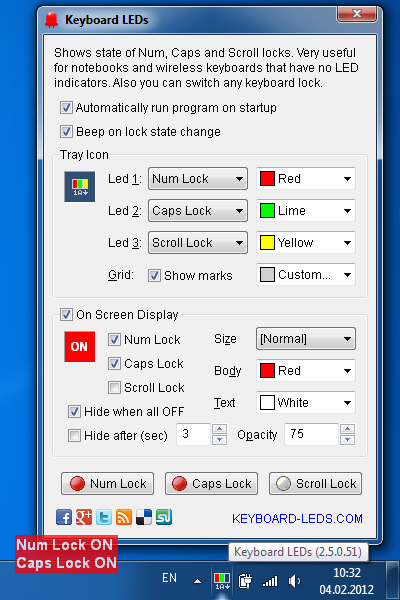
Program allows you to see the current state of keyboard locks (Caps, Num, Scroll). Information is shown in the system tray or on a floating window over your screen. Also there is an option to indicate the locks state changing with sound.

Keyboard Leds software by KARPOLAN

You can download and use Keyboard Leds program absolutely free!

Download EXE file
Download ZIP Archive

Thursday, June 23, 2011

Keyboard Leds 1.5

Keyboard LEDs version 1.5 has been released.

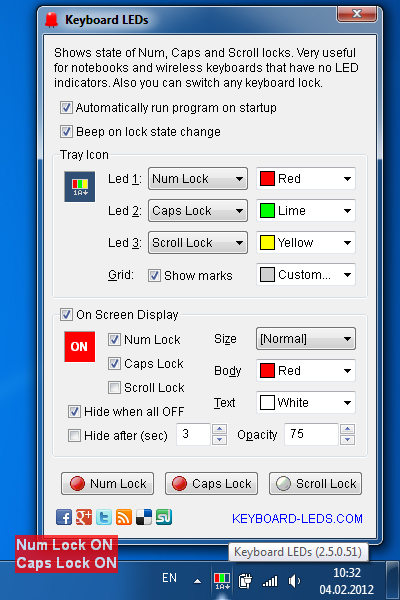
Program allows you to see the current state of keyboard locks (Caps, Num, Scroll). Information is shown in the system tray or on a floating window over your screen. Also there is an option to indicate the locks state changing with sound.

Keyboard LEDs software by KARPOLAN

You can download and use Keyboard LEDs program absolutely free!

Download EXE file
Download ZIP Archive

Tuesday, May 17, 2011

Keyboard Leds 1.3

Keyboard LEDs version 1.3 has been released.

Program allows you to see the current state of keyboard locks (Caps, Num, Scroll). Information is shown in the system tray or on a floating window over your screen. Also there is an option to indicate the locks state changing with sound.

Keyboard LEDs software by KARPOLAN

You can download and use Keyboard LEDs program absolutely free!

Download EXE file
Download ZIP Archive

Software works on Windows, there is no MacOS edition. Yet :)

Friday, September 10, 2010

Touchpad Blocker software for Windows

How often your cursor jumps to another paragraph when you are typing a text on notebook and accentually touch a touchpad by hand? Hate this behavior? Me too!

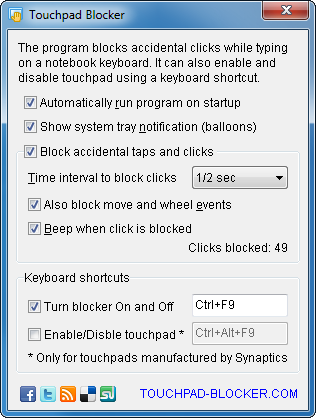
So, I've created a small program to solve this annoying problem. Touchpad Blocker automatically disables mouse events for a few moments if some key has been pressed.

Touchpad Blocker software for Windows by KARPOLAN

You can download and use Touchpad Blocker program absolutely free!

Download EXE file
Download ZIP Archive

Wish you happy typing :)

Tuesday, July 20, 2010

Keyboard Led Software

My new netbook has no keyboard indicators, so I've created a small software to know the state of Caps, Num and Scroll Locks.

Keyboard Leds is a program for Microsoft Windows. Software allows you to see the current state of keyboard locks. Information is shown on a small icon in the system tray or on the floating window over your screen. Works on Wondows platform

Keyboard Led software by KARPOLAN

You can download and use Key Leds program absolutely free!

Download EXE file
Download ZIP Archive

Monday, November 02, 2009

Created just for fun - Auto Mute

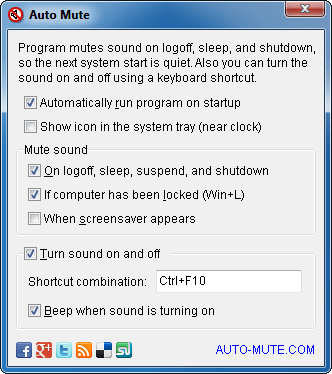
I've created small software utility to make notebooks silent when it's turning on or is waking up from a sleep mode. So the computer becomes quiet even if you forgot to turn the sound off in previous session. Very useful if you have small children or are trying to work in public places, on conferences for example.

Actually, this is my old idea of software for people who have small children, but nobody wants to make such tool for years. So if you want to have something you cannot buy, do it by yourself :)

Auto Mute software screenshot

Download EXE file
Download ZIP Archive

Hope this program will be helpful to many people. If you need additional feature or know how to improve this sound control software let me know.

Saturday, April 18, 2009

How to repair screen in notebook

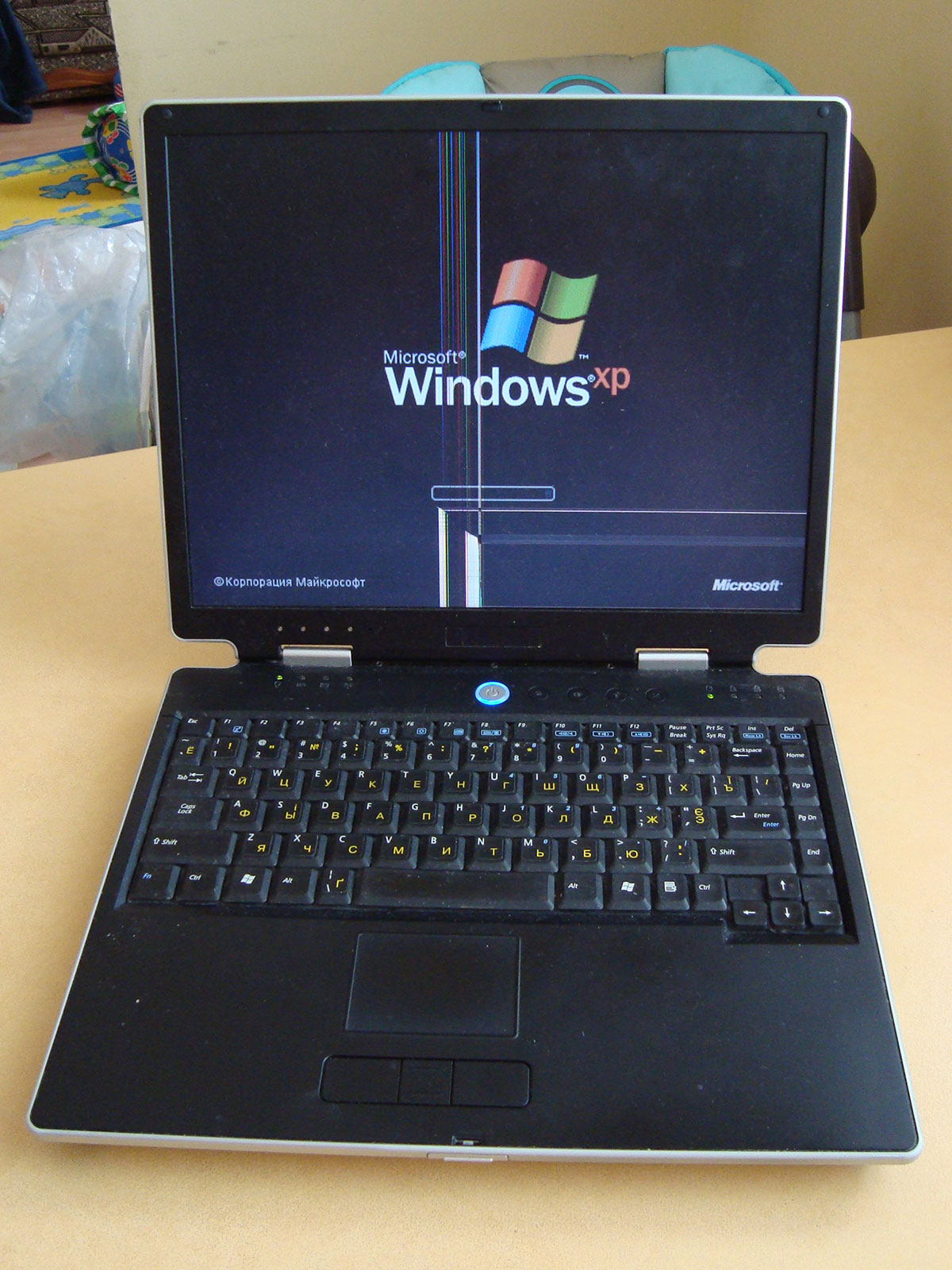
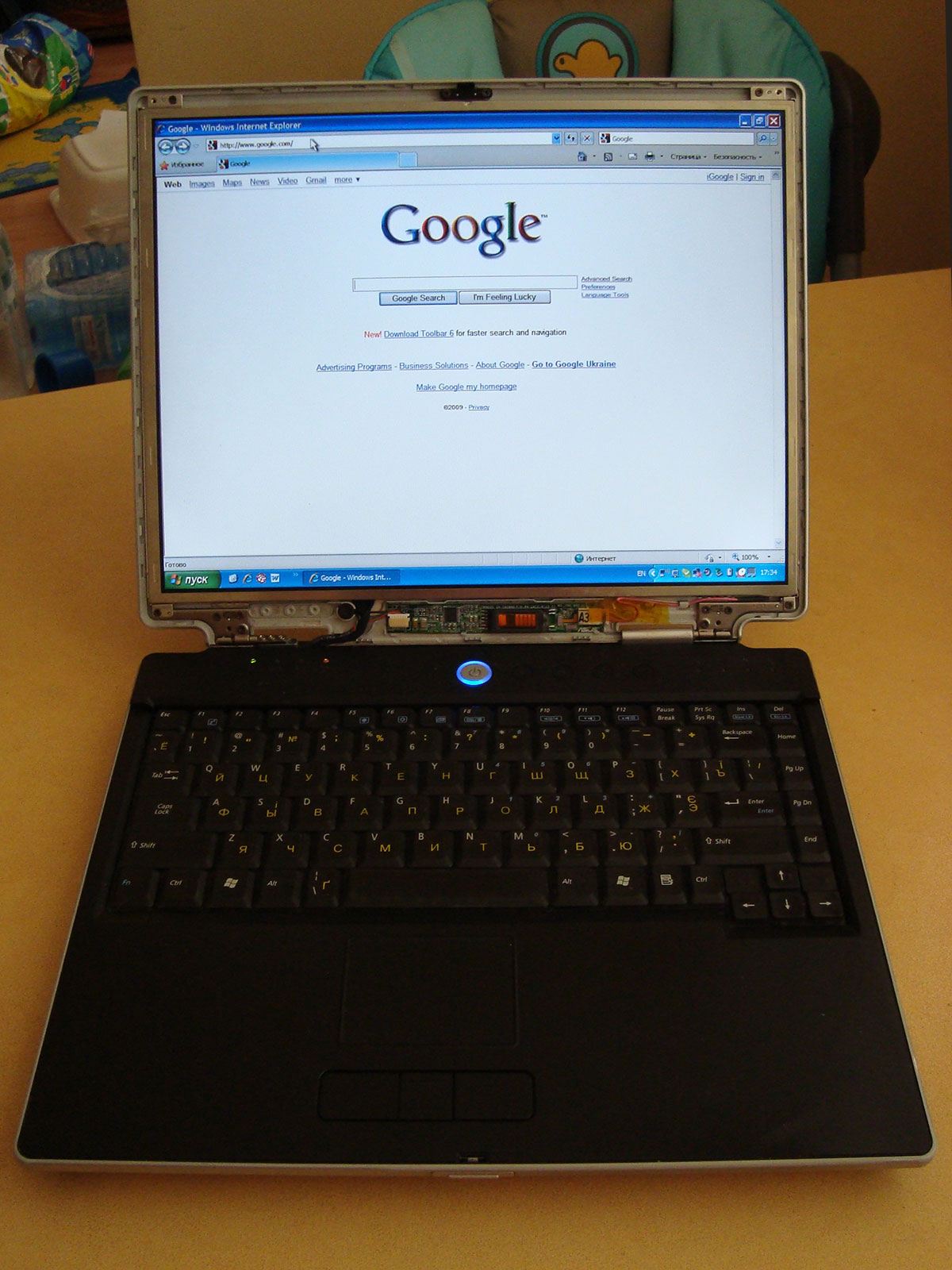
I've replaced LCD panel in ASUS M3000Np notebook. It wasn't too hard.

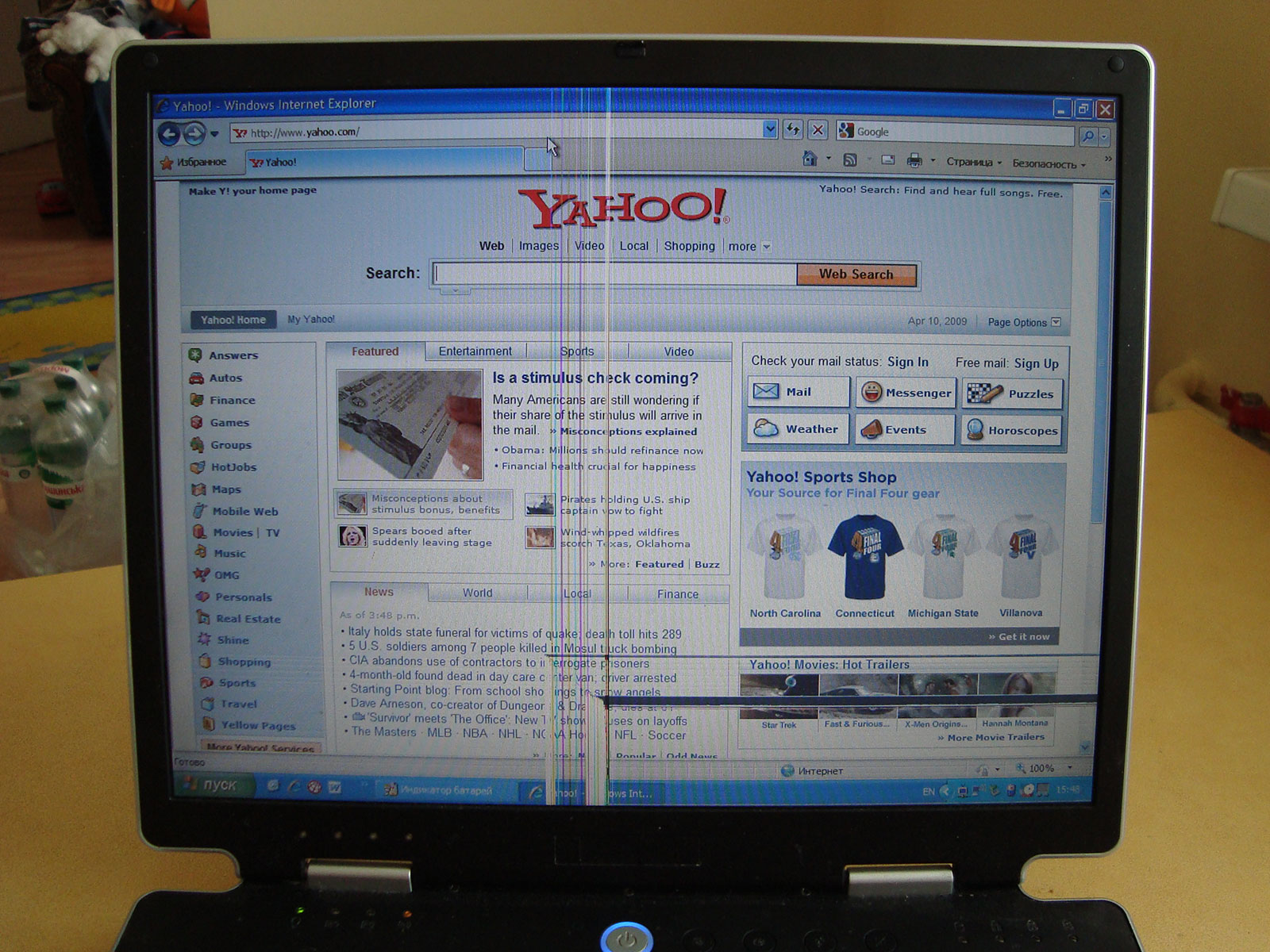
Broken screen in Oksana's notebook:

Notebook ASUS M3000Np with broken screen
Looks ugly, I can't even read half of text.

Well, lets try to fix this using the screen panel from another old notebook.

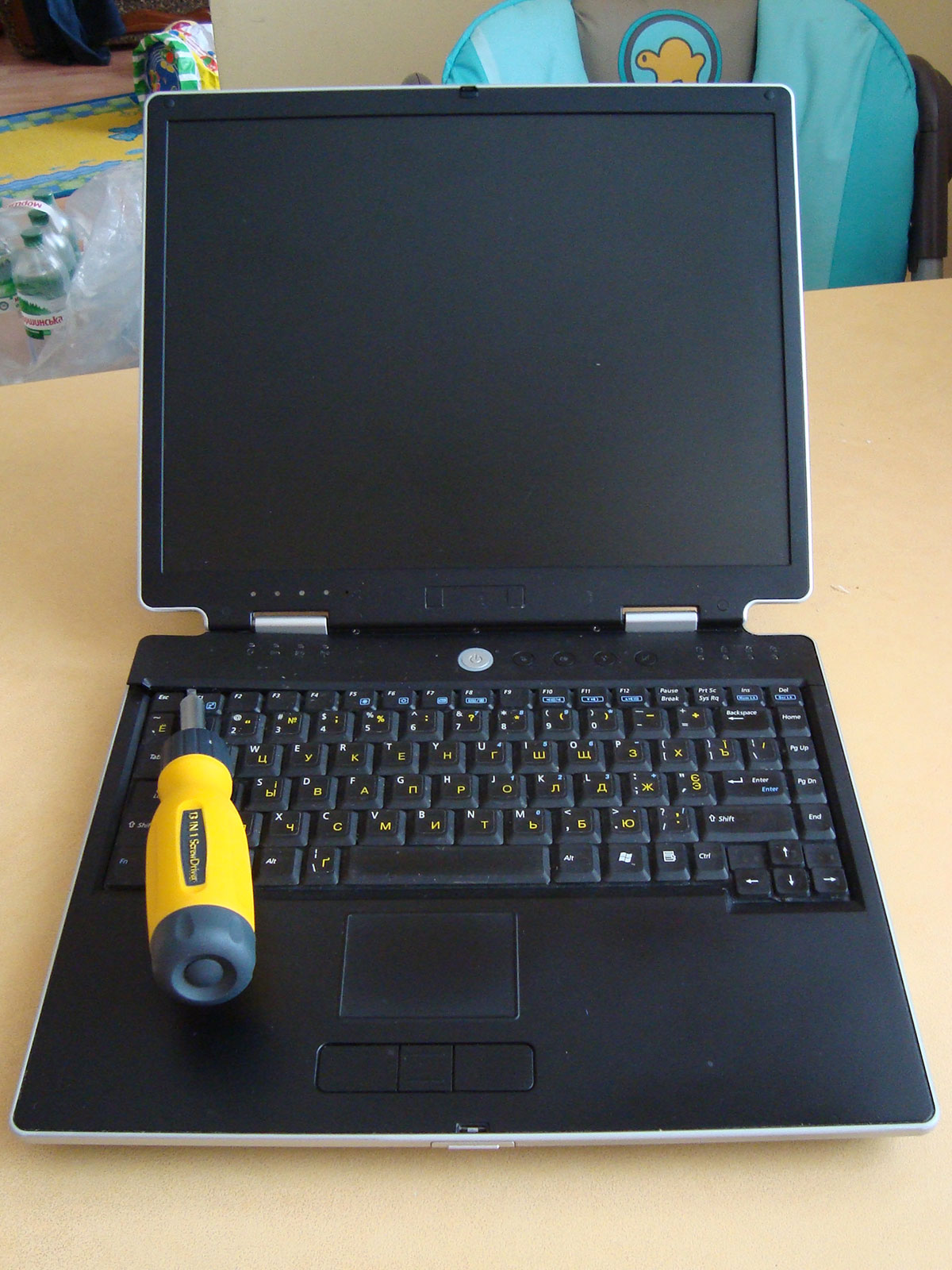
Disassembling of notebook case is a quest kind of game :)

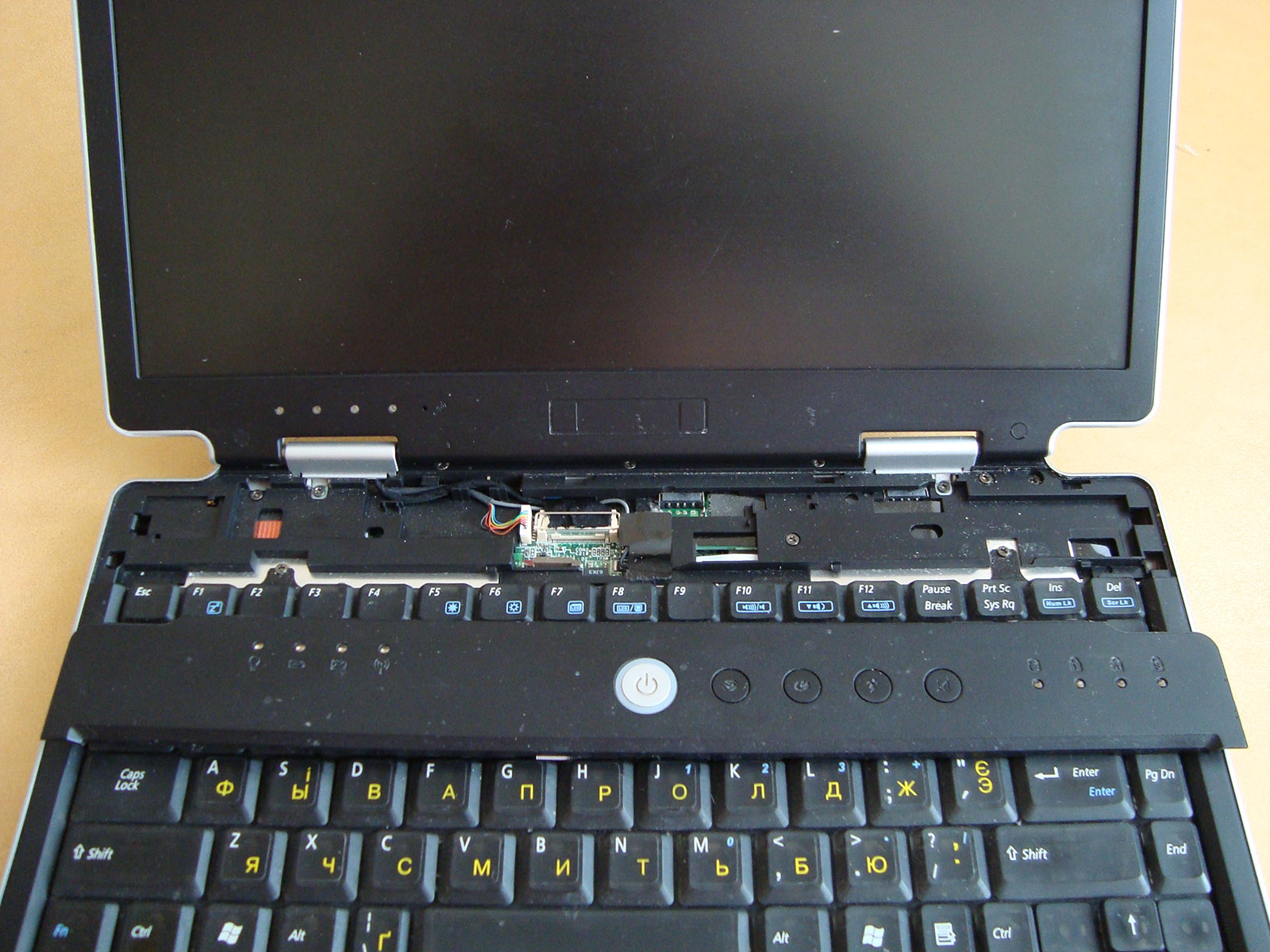
Open notebook ASUS M3 case. Use screwdriver near Esc key to lift up the top panel.
Disassemble ASUS M3000 notebook. Pull the panel left.
Notebook ASUS disassembling. Lift up and pull left the top panel.

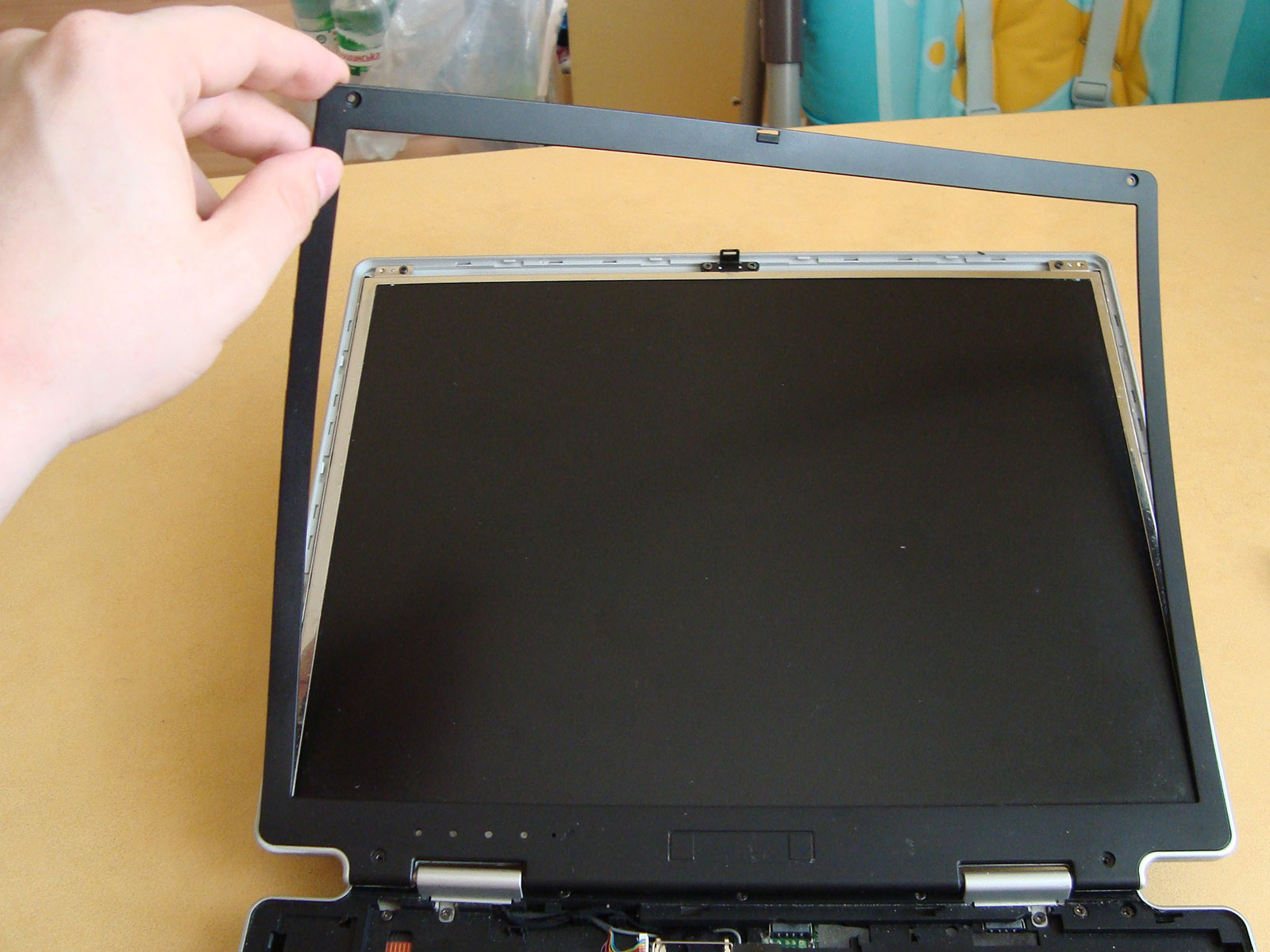
We need to remove plastic frame around the screen:

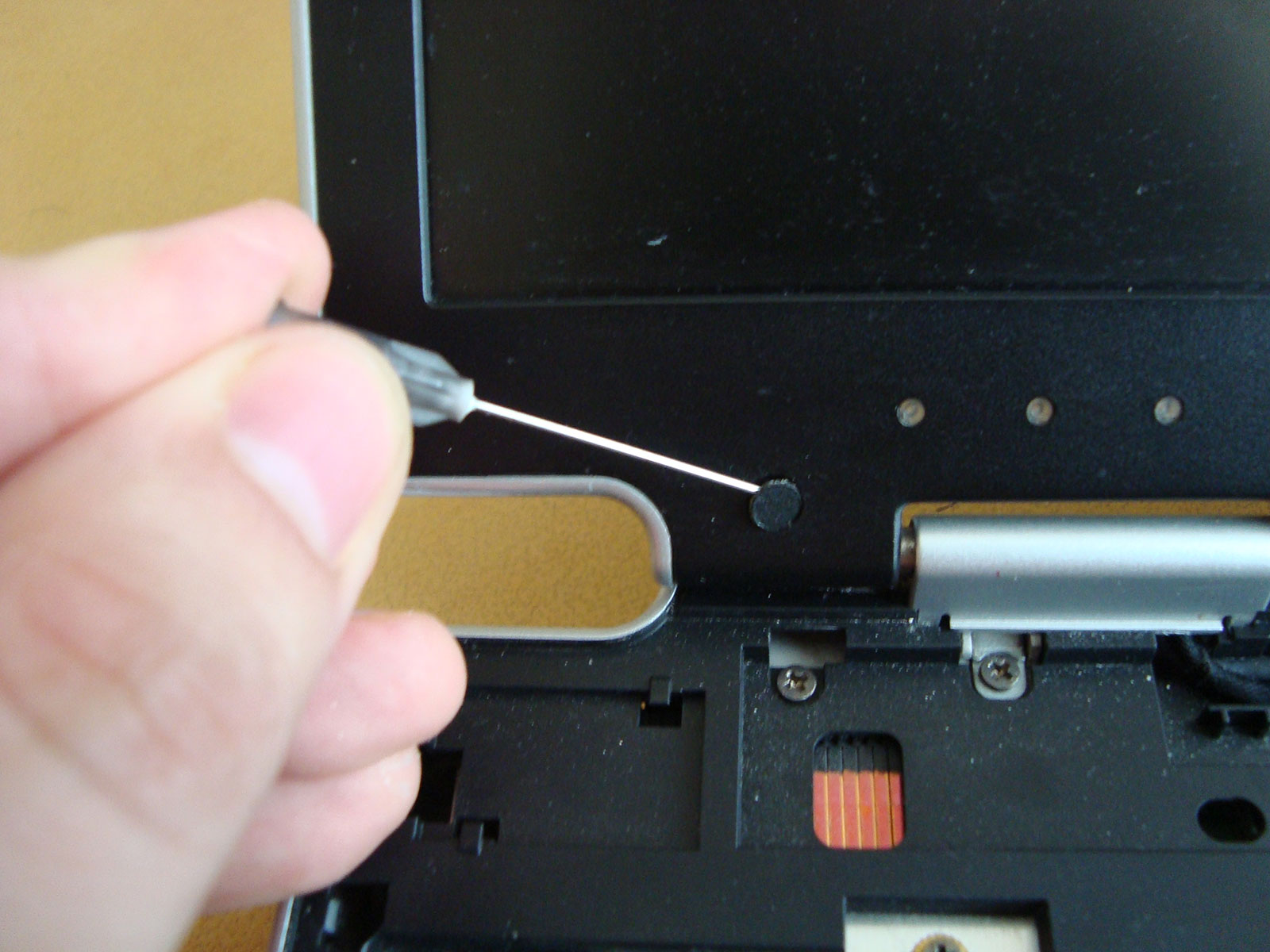
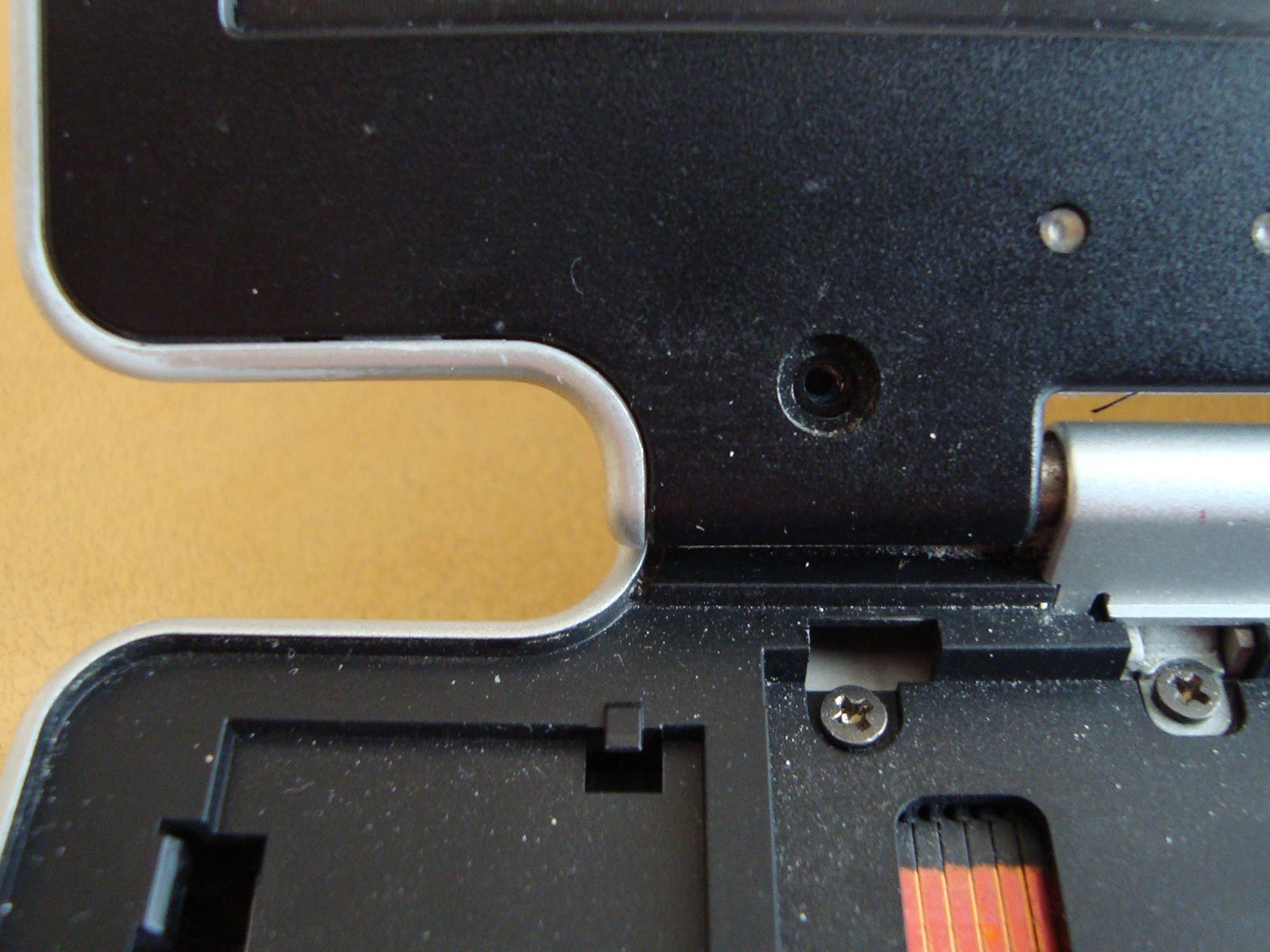
Remove screw hole covers. I've used medic needle.
Screw out 4 screws to release the screen frame

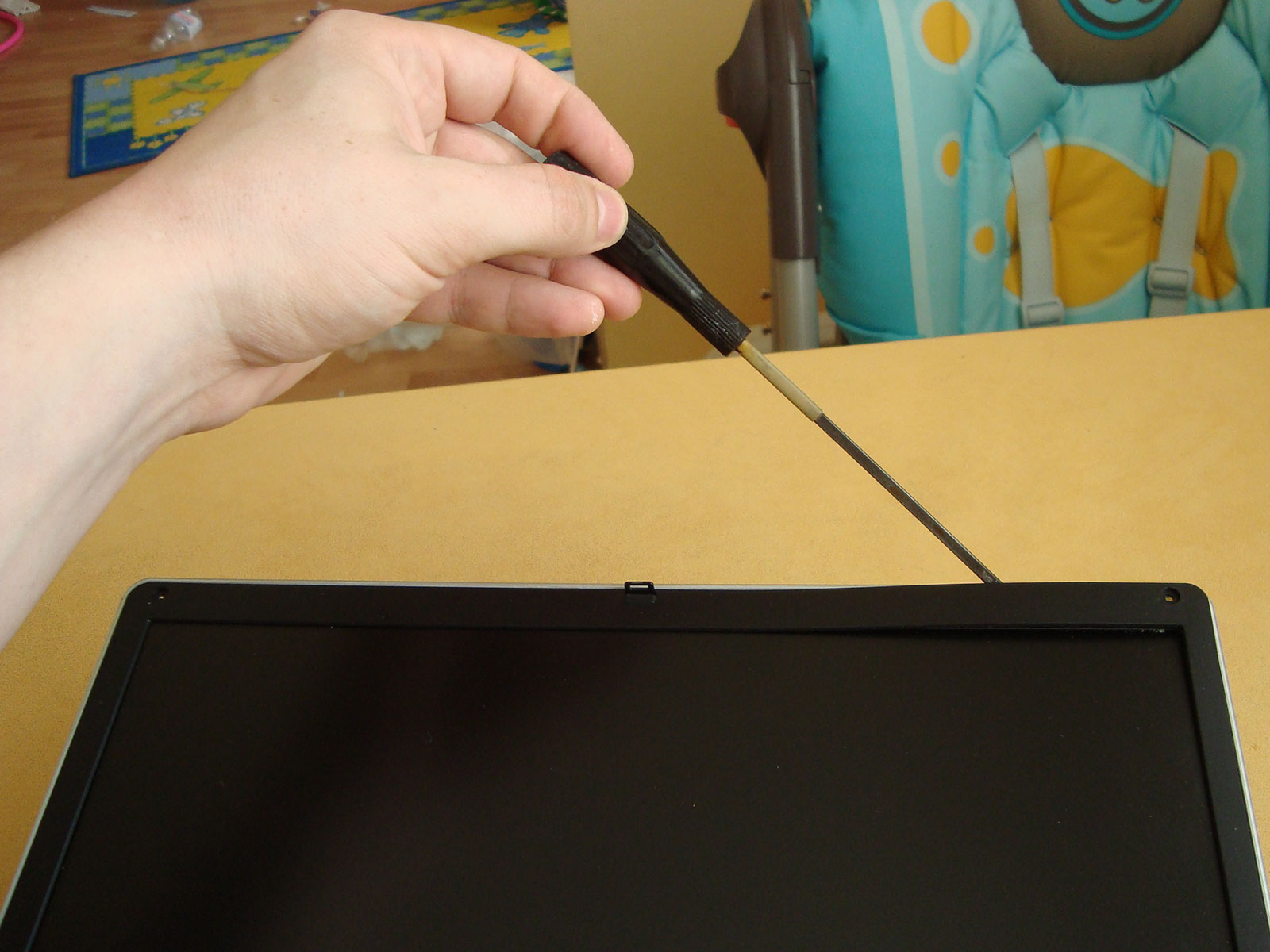
Screen frame is easy to remove now, but be careful! Use screwdriver to release latches.

Use screwdriver to release latches around the periphery
Frame is ready to remove. Be careful.

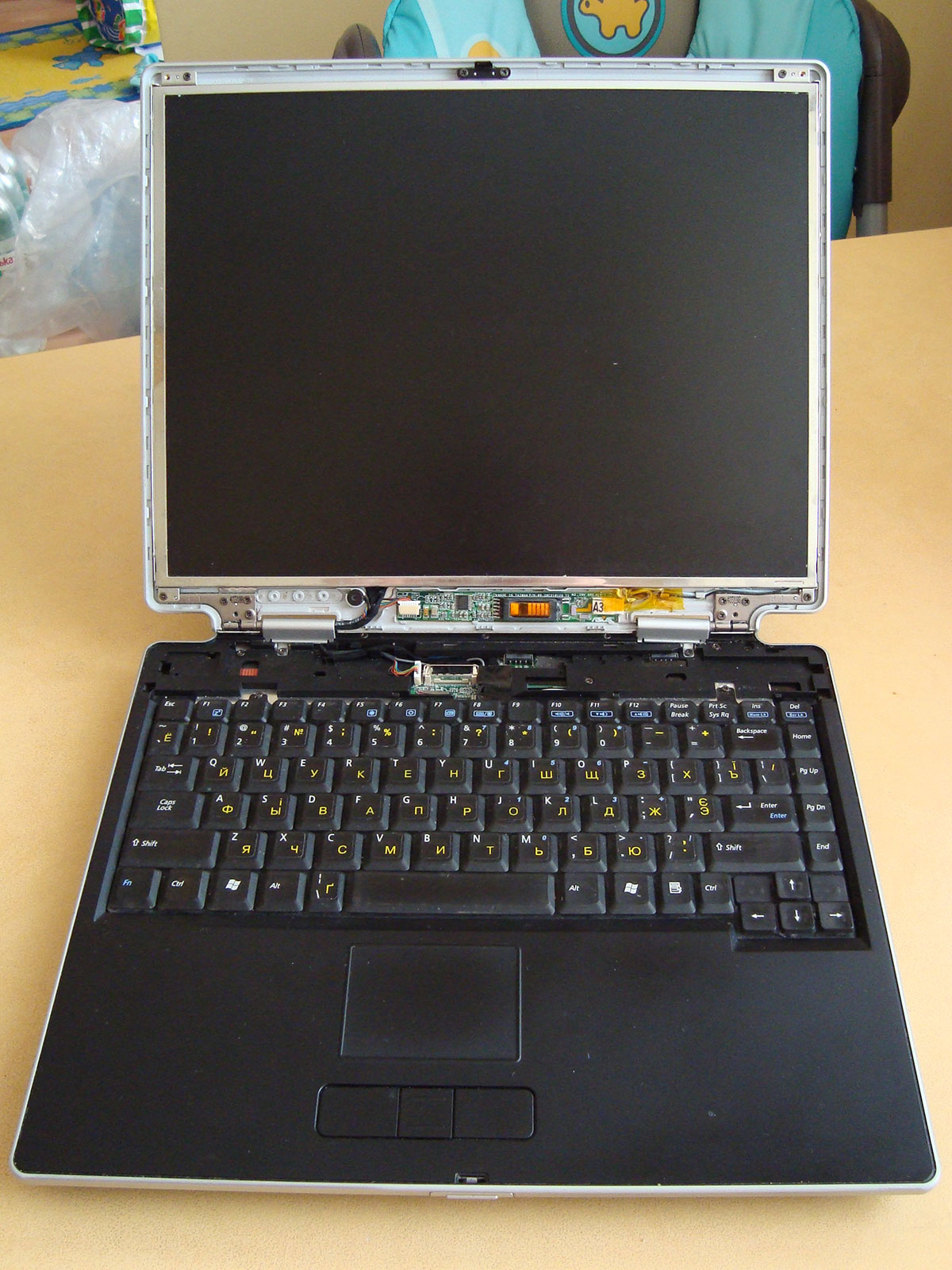
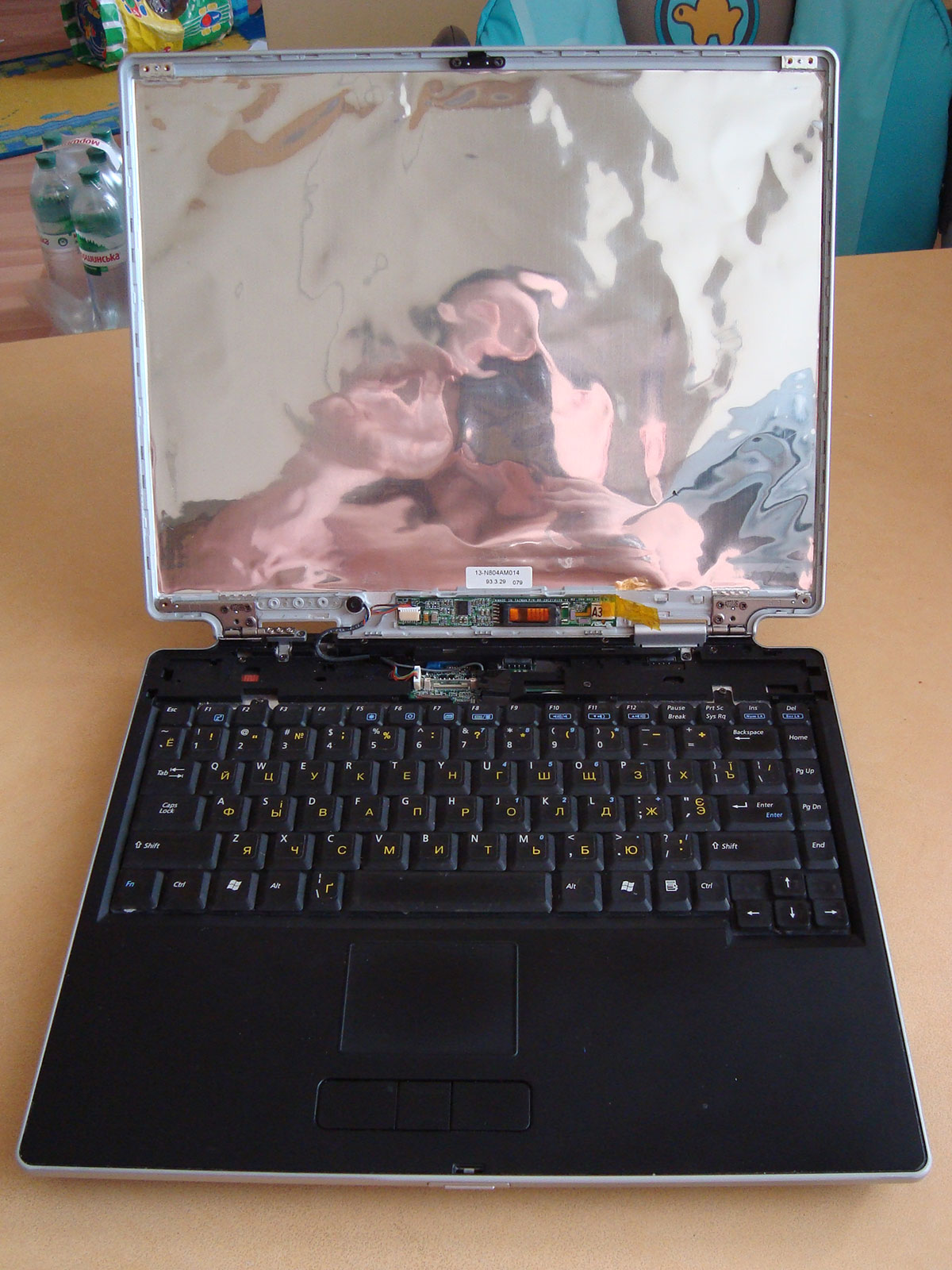
We've got access to LCD panel. Remove 4 corner screws and take out old screen.

LCD screen panel in ASUS M-3 notebook
Screw out corner fixes and take out screen panel of notebook

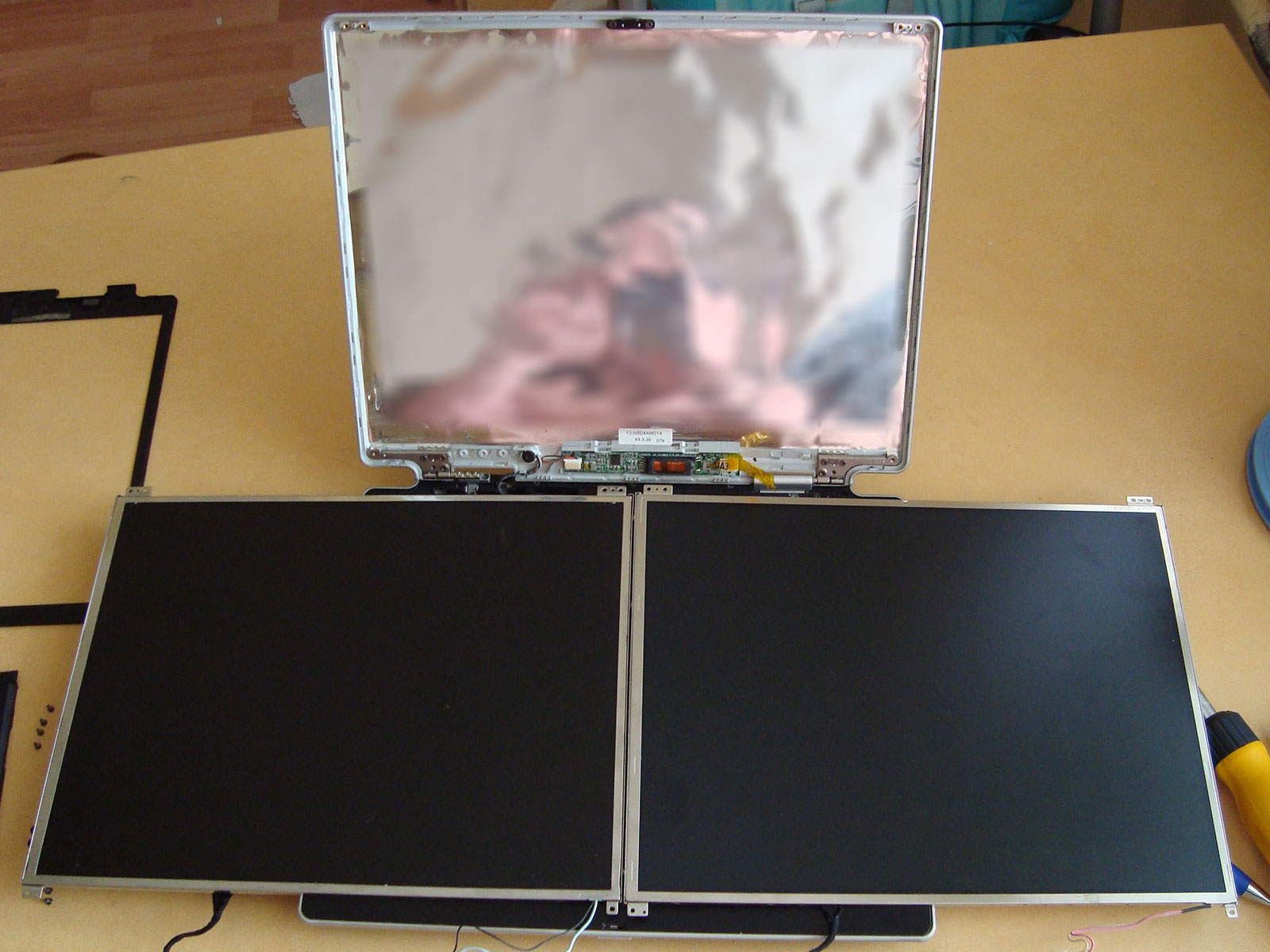
Take new screen panel and compare to the old one. They should absolutely match each other.

Notebook ASUS-M3 with old and new LCD screen panel

After replacing and plugging the screen panel, better turn the notebook on to verify does everything works fine :)

Place new screen panel to ASUS M3 notebook

Seems just fine, so assemble the notebook.

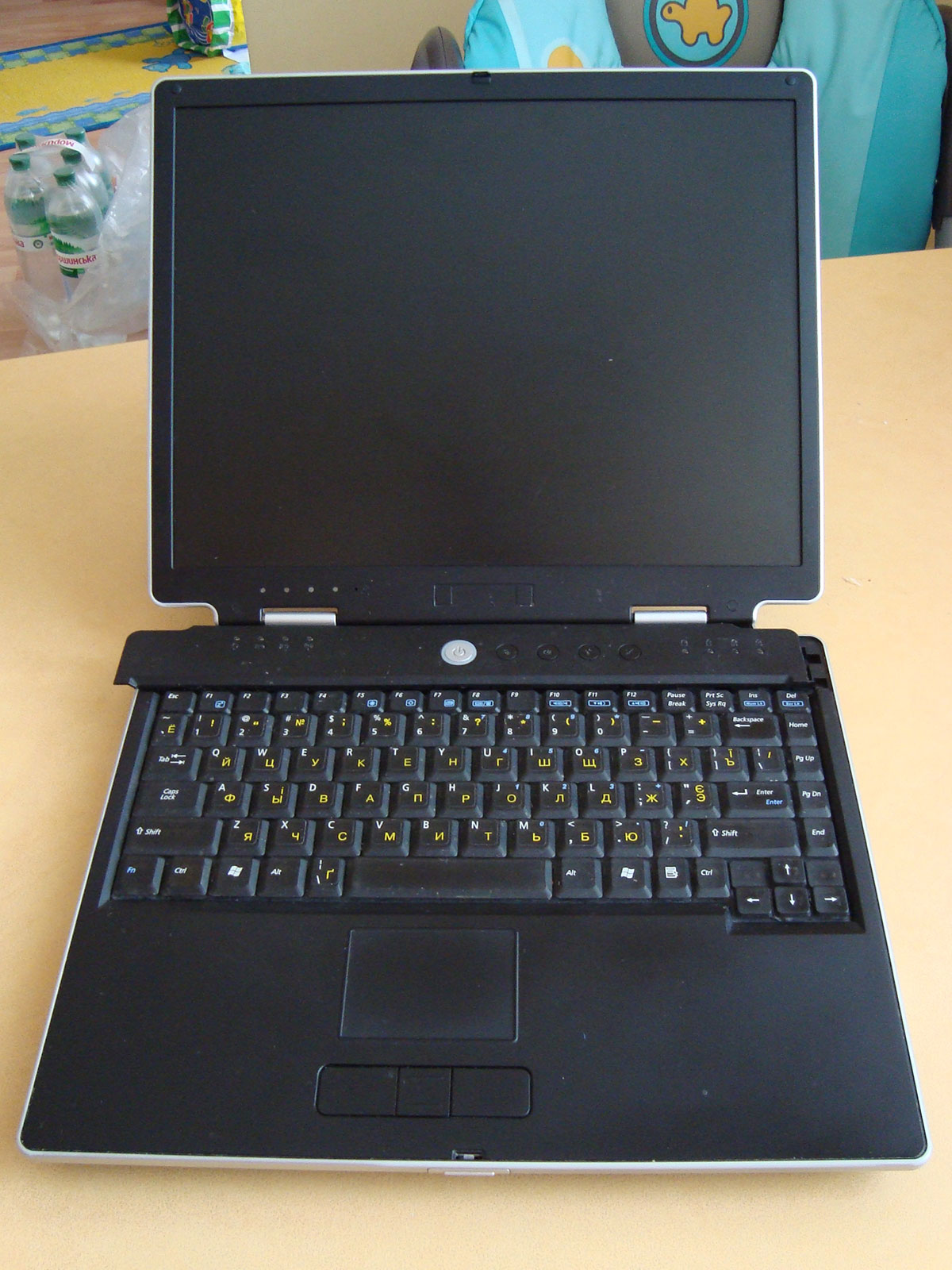
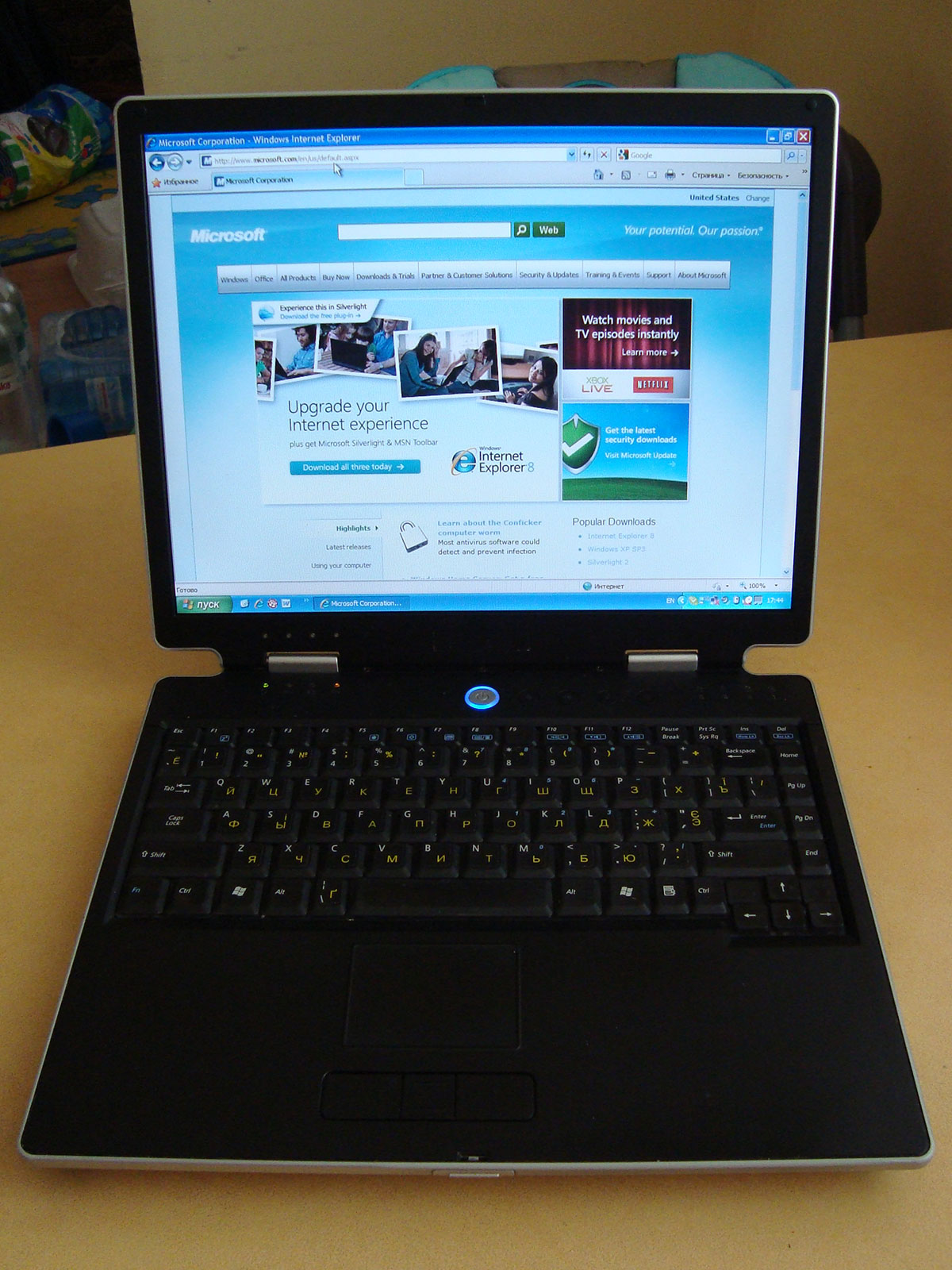
Place screen frame and top panel. Repairing is complete.

Repairing is complete. Everybody's happy :)